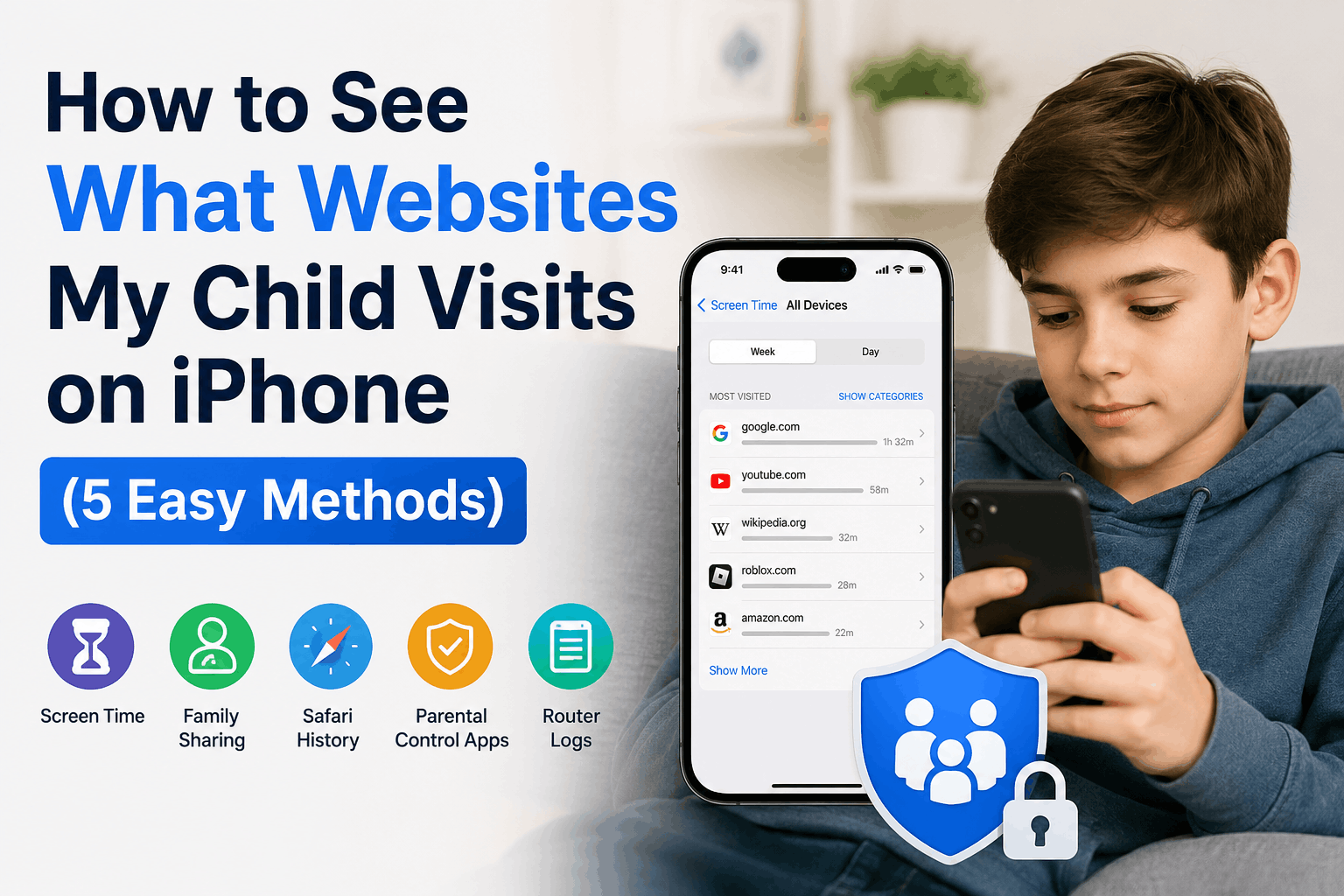
Every parent today faces the same concern What is my child actually doing online? If your child uses an iPhone, you might be wondering exactly how to see what websites your child visits on iPhone without invading their trust or getting into a complicated setup.
The good news is that Apple provides several built-in tools, and there are powerful third-party apps like SpymasterPro that give you complete visibility into your child’s online activity. In this guide, we cover 5 working methods — from free built-in options to professional monitoring solutions.
Method 1: Check a Child’s Safari Browsing History on iPhone
The simplest way to start is by checking Safari — Apple’s default browser on every iPhone.
Steps:
- Open the Safari app on your child’s iPhone
- Tap the Bookmarks icon (open book icon at the bottom)
- Tap the History tab (clock icon)
- You will see a chronological list of all recently visited websites
You can also use the search bar at the top to find a specific website or keyword.
Pro Tip: For a more complete list, go to Settings → Safari → Advanced → Website Data. This section shows all websites that have stored data on the device — including sites visited weeks ago that may no longer appear in the regular history tab.
Limitation: If your child has cleared their Safari history, this method will not show deleted records. Move to Method 4 for that.
Method 2: Use iPhone Screen Time to Monitor Website Activity
Apple’s Screen Time feature is one of the most underused parental control tools available — and it’s completely free.
How to set it up:
- Go to Settings → Screen Time
- Tap your child’s name (if Family Sharing is enabled)
- Tap See All Activity
- Scroll down to the Websites section
Here you will see the exact websites your child visited, how long they spent on each site, and at what time. The iphone screen time website activity report updates daily and gives you a clean overview without needing to touch your child’s phone.
Bonus: You can also set a daily time limit for specific websites directly from this screen. If your child reaches the limit, Safari blocks that site automatically.
Method 3: Monitor Websites Remotely via Family Sharing
If you have set up Family Sharing on your Apple account, you can check your child’s browsing activity remotely from your own iPhone — no need to pick up their device.
Steps:
- On your iPhone, go to Settings → Screen Time
- Scroll down and tap your child’s name under Family
- Tap See All Activity
- View the complete website history with time stamps
This is ideal for parents who want to quietly monitor without making it obvious. The child’s device continues working normally while you check the activity report on your end.
Method 4: How to View Deleted Browser History on a Child’s iPhone
This is the question most parents ask What if my child is smart enough to delete their history? Here’s what you can do.
Option A — Website Data in Settings:
Go to Settings → Safari → Advanced → Website Data. Even after clearing browser history, many websites leave stored data behind. This list often reveals sites your child visited even if history was manually deleted.
Option B — iCloud Backup:
If your child’s iPhone is backed up to iCloud, some Safari history may be recoverable through the backup. However, accessing iCloud backup history directly on the device requires a full restore, which is impractical for everyday use.
Option C — Use a Monitoring App (Recommended):
The most reliable way to see deleted browser history on a child’s iPhone is through a dedicated parental monitoring app. Apps like SpymasterPro capture browsing activity in real time before it can be deleted, giving you a permanent record on your dashboard.
Method 5: Use SpymasterPro — Best Parental Control App to Monitor Websites on iPhone
For parents who want a complete, reliable, and remote solution, SpymasterPro is the most effective parental control app to monitor websites on iPhone. Unlike the built-in Apple tools, SpymasterPro works even when your child uses private browsing mode or clears their history.
What SpymasterPro tracks on iPhone:
- All websites visited in Safari and Chrome
- Private/incognito browsing activity
- Browsing timestamps and frequency
- Blocked or flagged inappropriate sites
- Real-time alerts for dangerous searches
How it works for iPhone:
SpymasterPro uses your child’s iCloud credentials — no jailbreak needed, no app installation on their device. Simply log in with their Apple ID credentials on your SpymasterPro dashboard and start monitoring within minutes.
This makes it completely invisible to the child while giving you full access to their web activity from your phone or computer.
Can Parents See Incognito History on iPhone?
This is one of the most common questions — and the honest answer is: not with Apple’s built-in tools alone.
Safari’s Private Browsing mode is designed to leave no local trace on the device. Screen Time also does not capture private browsing sessions. However, a dedicated monitoring app like SpymasterPro can track incognito activity by working at the iCloud level rather than reading local browser data.
If your child has figured out that private mode hides their activity, a professional monitoring solution is the only reliable way to maintain full visibility.
What If My Child Deletes Their Browser History?
If your child regularly clears their Safari history, it is a sign they are aware of being monitored. Here is what to do:
- Check Website Data in Safari Settings — residual data often remains even after history is cleared
- Enable Screen Time with a passcode so your child cannot change the settings
- Use SpymasterPro, which records browsing data to a secure dashboard before the child gets a chance to delete it
Which Method Should You Use?
| Method | Free | Remote Access | Works After Deletion | Incognito |
|---|---|---|---|---|
| Safari History | ✅ | ❌ | ❌ | ❌ |
| Screen Time | ✅ | ✅ | ❌ | ❌ |
| Family Sharing | ✅ | ✅ | ❌ | ❌ |
| Website Data | ✅ | ❌ | Partial | ❌ |
| SpymasterPro | ❌ | ✅ | ✅ | ✅ |
Final Thoughts
Knowing how to see what websites your child visits on iPhone is not about spying — it is about keeping your child safe in a digital world full of risks. Apple’s built-in tools are a good starting point, but they have clear limitations when children become tech-savvy enough to clear history or use private mode.
For complete peace of mind, SpymasterPro offers everything in one place — remote access, incognito tracking, deleted history recovery, and real-time alerts — all without touching your child’s device.
👉 Start monitoring your child’s iPhone today with SpymasterPro
Disclaimer: SpymasterPro recommends that parents inform their children about monitoring in accordance with local laws. Always use parental monitoring tools responsibly and with the intent of keeping your child safe.