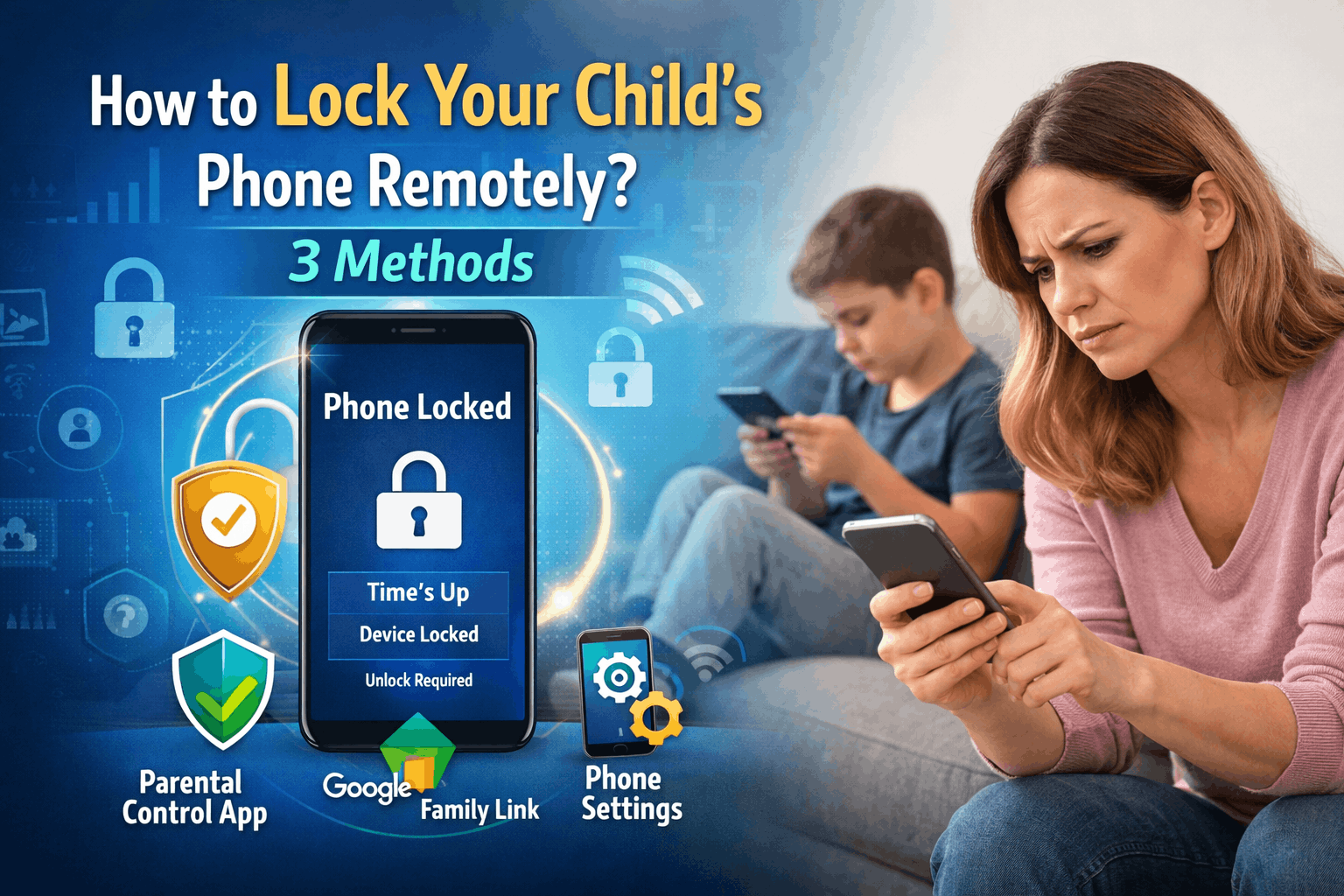
In today’s digital age, smartphones have become an essential part of a child’s daily life. From online classes to entertainment and social media, kids are constantly connected to their devices. However, too much screen time can lead to serious issues like poor academic performance, sleep disruption, and even exposure to harmful online content. That’s why many parents are actively searching for how to lock your child’s phone remotely—a practical solution to maintain control without constant supervision.
In this detailed guide, we’ll explain 3 powerful methods that allow parents to remotely lock their child’s phone, manage screen time, and ensure a safer digital environment.
Why Parents Should Lock Their Child’s Phone Remotely
Remote phone control is no longer a luxury—it’s a necessity. Here’s why:
- Helps reduce screen addiction
- Prevents late-night phone usage
- Blocks access to harmful apps and websites
- Encourages better study habits
- Improves overall digital discipline
Instead of arguing or manually taking away the phone, you can simply lock it remotely in seconds.
Method 1: Use a Parental Control App (Most Recommended)
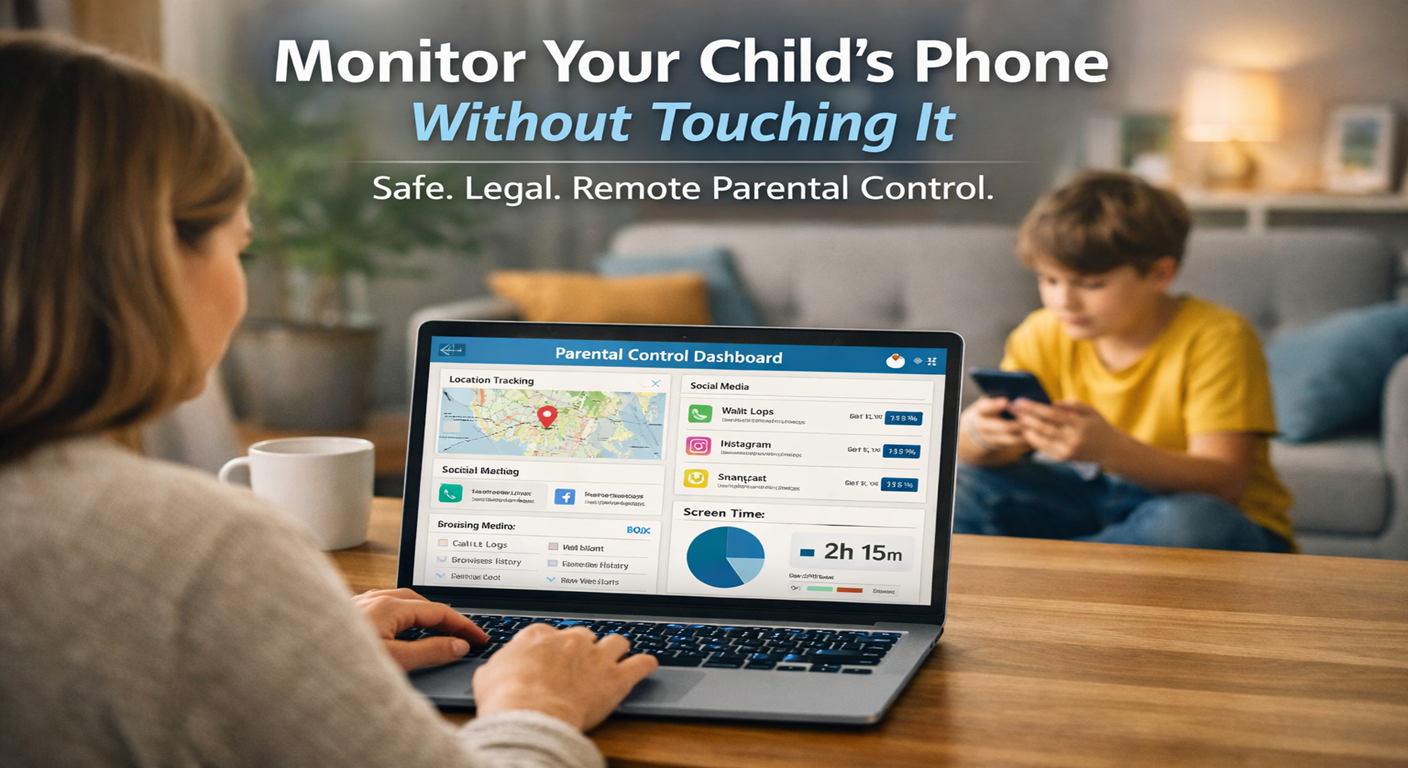
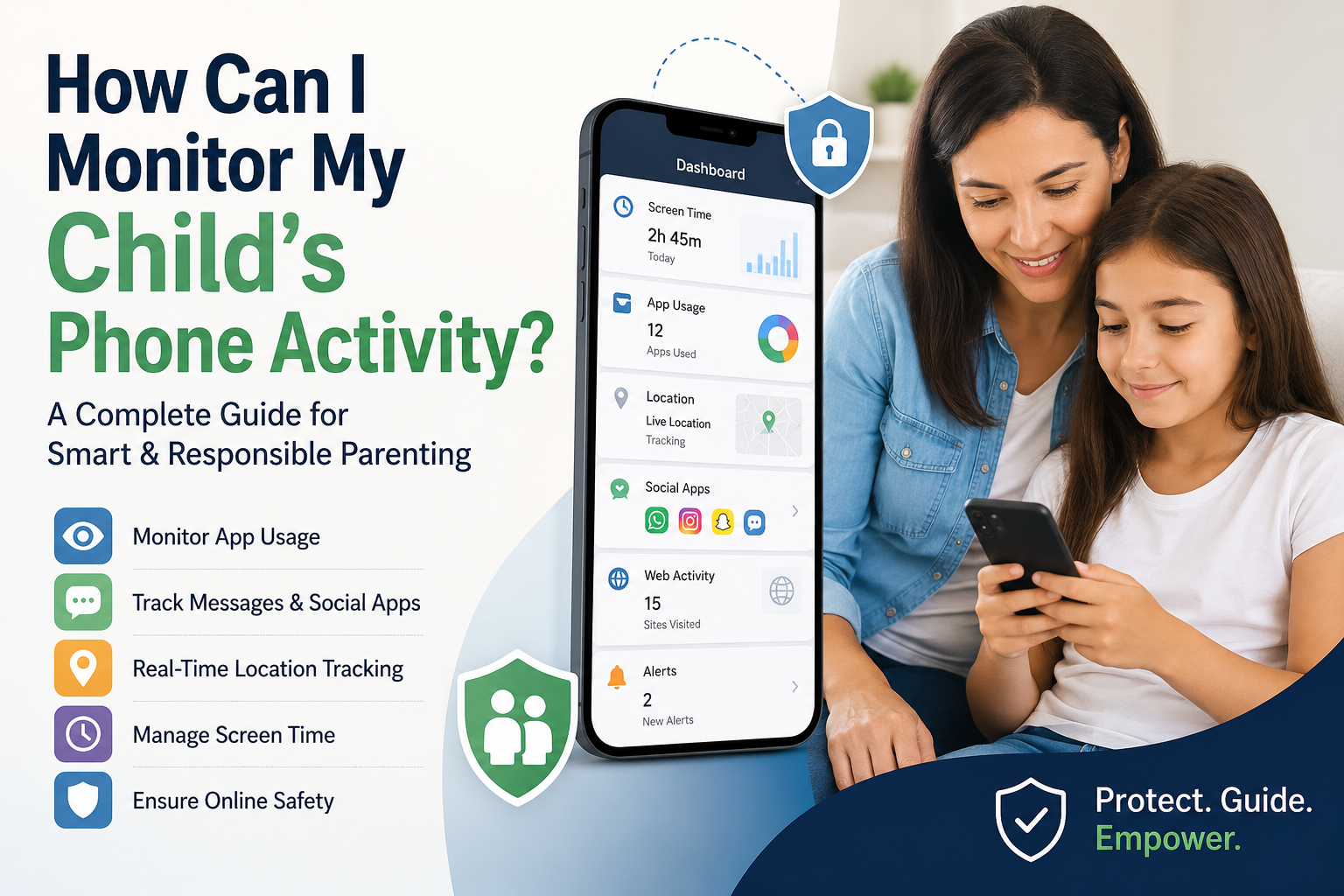
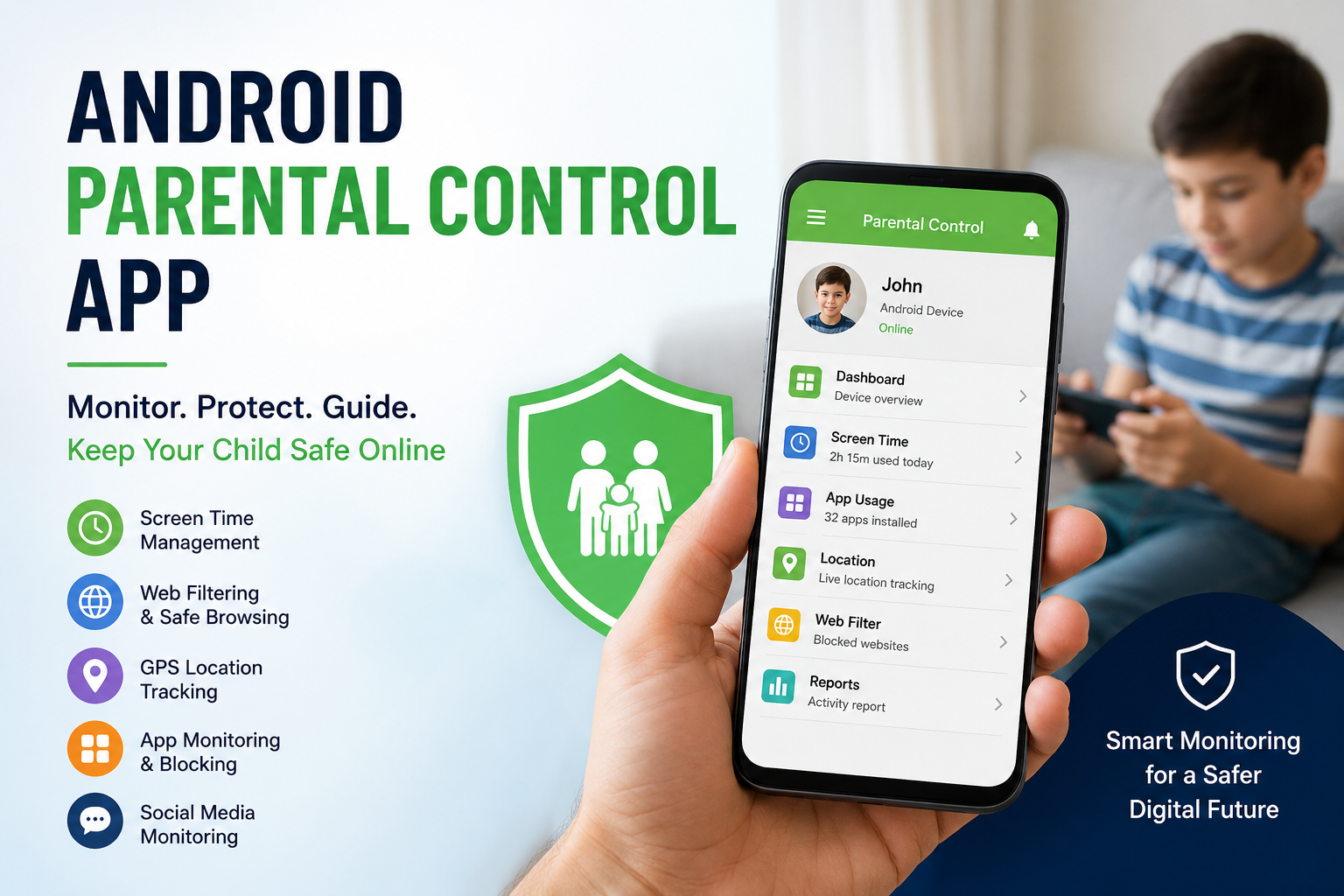
The most efficient way to lock your child’s phone remotely is by using a dedicated parental control app. These apps are designed to give parents full authority over their child’s device.
Key Features:
- Instantly lock/unlock the phone
- Set daily screen time limits
- Monitor app usage and activity
- Track real-time location
- Block inappropriate apps and websites
How to Use:
- Install the parental control app on both devices
- Create a parent account
- Connect your child’s device
- Use the dashboard to lock the phone anytime
👉 This method is best for parents who want complete control, monitoring, and automation in one place.
Method 2: Use Google Family Link
If you’re looking for a free and reliable solution, Google Family Link is a great option for Android users.
Features:
- Remotely lock your child’s phone
- Set screen time limits
- Monitor app downloads and usage
- Track device activity
Steps to Lock Phone:
- Download Google Family Link on your device
- Link your child’s Google account
- Select your child’s profile
- Tap on the “Lock Device” option
👉 It’s simple, effective, and completely free, making it ideal for beginners.
Method 3: Use Built-in Phone Features
Modern smartphones come with built-in parental control tools, although they are limited compared to apps.
For Android:
- Use Digital Wellbeing
- Enable Focus Mode
- Set app timers
For iPhone:
- Use Screen Time
- Set downtime schedules
- Restrict app usage
👉 While useful, these features do not allow full remote locking from another device, which is a major limitation.
Common Situations Where Remote Lock Helps
Understanding when to use this feature is equally important:
- During study hours to avoid distractions
- At bedtime to ensure proper sleep
- During family time for better interaction
- When your child is overusing social media
- As a disciplinary action when needed
Remote locking gives parents a balanced way to enforce rules without being overly strict.
Best Method Comparison
| Method | Remote Lock | Ease of Use | Advanced Features |
|---|---|---|---|
| Parental Control App | ✅ | ⭐⭐⭐⭐⭐ | Full control |
| Google Family Link | ✅ | ⭐⭐⭐⭐ | Moderate |
| Built-in Features | ❌ | ⭐⭐⭐ | Basic |
👉 Final Verdict:
If you want maximum control and flexibility, using a parental control app is the best choice.
Pro Tips for Parents
- Always discuss rules with your child before applying restrictions
- Use remote lock as a guidance tool, not punishment
- Combine screen time limits with productive activities
- Regularly review your child’s digital habits
FAQs
1. How can I lock my child’s phone remotely instantly?
You can use parental control apps or tools like Google Family Link to lock the phone in real time.
2. Is it legal to control my child’s phone?
Yes, parents have full rights to monitor and control their child’s device usage for safety purposes.
3. Can I unlock the phone remotely as well?
Yes, most parental control apps allow both locking and unlocking remotely.
4. Which is the best app to lock a child’s phone?
There are many options available, but choosing one with strong monitoring and control features is recommended.
Conclusion
Learning how to lock your child’s phone remotely is one of the smartest steps you can take as a modern parent. With the right tools and methods, you can ensure your child stays safe, focused, and disciplined in the digital world.
Whether you choose a parental control app, Google Family Link, or built-in features, the key is to maintain a healthy balance between freedom and control. Start today and take charge of your child’s digital well-being in a smart and effective way.